High Dynamic Range (HDR) gaming has changed the way players experience their favourite games. It creates brighter highlights, deeper contrast, and a wider range of colours, making digital environments appear more realistic. From sunlight shining across a desert landscape to the glow of neon lights in a futuristic city, HDR can add impressive visual detail to modern games. However, enjoying these benefits requires compatible hardware, suitable display settings, and games that support HDR technology.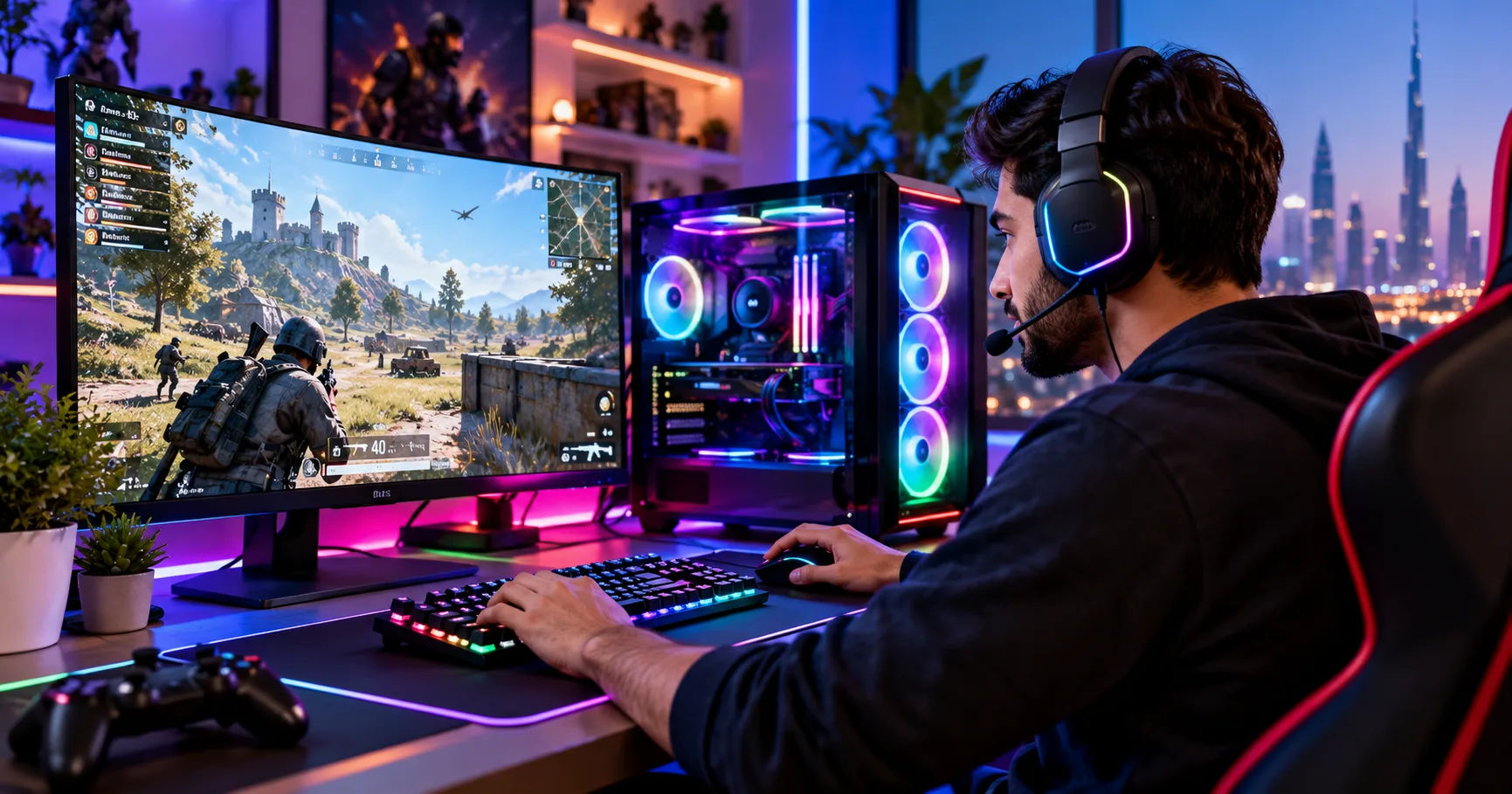
For gamers who want better graphics and an immersive gaming experience, understanding HDR compatibility is an important part of choosing a computer. A powerful graphics card alone does not guarantee the best results because the monitor, operating system, cables, and game settings also play important roles.
When choosing a gaming pc dubai setup, it is worth checking whether the computer supports HDR gaming and whether its components can deliver the performance needed for smooth gameplay. Many modern gaming computers can support HDR when paired with a compatible monitor or television. However, the actual experience depends on the graphics hardware, display specifications, connection standards, and the games being played.
Whether you enjoy competitive shooters, open-world adventures, racing simulations, or cinematic role-playing games, HDR can improve the visual experience when configured correctly. This guide explains how HDR works, what hardware you need, how to check compatibility, and what to consider before investing in an HDR-ready gaming setup.
What Is HDR Gaming?
gaming pc dubai High Dynamic Range. It is a display technology designed to show a broader range of brightness levels and colours than Standard Dynamic Range (SDR).
Traditional SDR displays have limitations in how they represent very bright and very dark areas in the same scene. HDR-compatible displays can reproduce more detail across these extremes, provided they have the necessary brightness, contrast, and colour capabilities.
For example, imagine playing a game set in a city at night. With SDR, bright signs and streetlights may appear less intense, while dark streets can lose important details. With a suitable HDR display, bright signs can look more vivid, and shadowed areas may retain more visible information.
HDR can also make natural environments more convincing. Sunlight, reflections on water, fire, explosions, and illuminated objects can appear more lifelike.
How HDR Differs From Standard Graphics
HDR does not simply make every colour brighter. Instead, it allows supported content to represent a wider range of brightness and colour information.
The main differences include:
-
Brighter highlights: Sunlight, explosions, and reflections can appear more intense.
-
Improved contrast: Bright and dark elements can be displayed together with greater visual impact.
-
Expanded colour range: Compatible displays can reproduce a wider range of colours.
-
More realistic lighting: Supported games can create a stronger sense of depth and atmosphere.
-
Better cinematic presentation: Carefully designed scenes can look closer to the intended artistic presentation.
The quality of these improvements depends heavily on the display. A screen that accepts an HDR signal but has limited brightness or poor contrast may provide only a modest improvement over SDR.
Does HDR Improve Gaming Performance?
HDR primarily improves image presentation rather than increasing processing speed. It does not automatically raise frame rates, reduce input lag, or improve a player's competitive performance.
A graphics card still needs to render the game at the selected resolution and quality settings. HDR processing can affect performance slightly in certain circumstances, but it is generally not the main factor determining frame rates.
For a smooth experience, gamers should balance HDR quality with resolution, refresh rate, and graphics settings. A high-quality HDR image is most enjoyable when gameplay remains responsive and consistent.
Does Gaming PC Dubai Support HDR Gaming?
Yes, many modern gaming computers available in Dubai can support HDR gaming. However, HDR compatibility depends on the specific computer configuration rather than the location where the computer is purchased.
A desktop equipped with a compatible graphics card can generally output HDR to a supported monitor or television. The display must also accept the appropriate HDR signal and provide the hardware capabilities needed to reproduce it effectively.
When comparing a gaming pc dubai configuration with other gaming systems, check the graphics card model, available video outputs, operating system, and monitor specifications. These details determine whether HDR can be enabled and how good the resulting image will look.
The Importance of the Graphics Card
The graphics card is one of the most important components in an HDR gaming setup. Modern dedicated GPUs from major manufacturers support HDR output, although exact capabilities vary by model, connection type, and driver support.
A suitable graphics card can process HDR-compatible games and send the appropriate signal to an external display.
However, graphics cards differ considerably in gaming performance. An entry-level model might support HDR output but struggle to run demanding games at high resolutions and frame rates. A more powerful GPU may deliver smoother gameplay at 1440p or 4K while maintaining higher graphics settings.
When choosing a computer, consider both HDR support and the performance required by your favourite games.
Why the Monitor Matters
Even if your computer supports HDR, you need a compatible display to experience its benefits.
Look for a monitor that specifies HDR support and provides useful information about its peak brightness, contrast ratio, colour reproduction, and local dimming capabilities.
A display with strong contrast and effective local dimming can produce more convincing highlights and darker blacks. OLED monitors can also provide excellent contrast because individual pixels can switch off, although brightness behaviour and other characteristics vary by model.
Some inexpensive monitors advertise HDR compatibility but cannot produce the brightness or contrast necessary for a meaningful HDR experience. Therefore, it is important to evaluate real display performance rather than relying only on an HDR label.
Hardware Requirements for HDR Gaming
Building an HDR-ready setup involves more than purchasing a powerful computer. Several components must work together to produce the intended result.
A Compatible Graphics Card
Your GPU must support HDR output through the connection you plan to use. Most modern gaming graphics cards offer suitable capabilities, but you should verify the specifications of your particular model.
The graphics card also needs enough processing power to run your games at your preferred resolution and frame rate.
For example, playing an older game at 1080p may require considerably less processing power than playing a demanding modern title at 4K with ray tracing enabled.
An HDR-Compatible Monitor or Television
Your monitor or television must support the HDR format used by your game and connection.
Check whether the display supports HDR10, which is widely used in PC gaming. Some displays also support other HDR formats, but compatibility varies across hardware and software.
Consider these display specifications before buying:
-
Peak brightness, measured in nits.
-
Native contrast ratio.
-
Colour gamut and colour accuracy.
-
Local dimming performance, if available.
-
Resolution and refresh rate.
-
Supported HDR formats.
-
DisplayPort and HDMI connectivity.
A monitor with a high refresh rate and strong HDR performance can be an excellent choice for gamers who want both smooth motion and impressive visuals.
Suitable HDMI or DisplayPort Connections
The cable and connection standard can affect which resolutions, refresh rates, and HDR features are available.
Modern HDMI and DisplayPort connections can support HDR, but the maximum capabilities depend on the specific versions of the graphics card, display, and cable.
For example, a high-resolution monitor running at a high refresh rate may require a connection with sufficient bandwidth. If the connection cannot provide the required bandwidth, you may need to reduce the refresh rate, resolution, or another display setting.
Always check the manufacturer's recommendations for your particular hardware combination.
An Updated Operating System and Graphics Driver
Software compatibility is another important requirement.
Windows versions that support HDR provide settings for enabling the feature on compatible displays. Graphics drivers also help the operating system and games communicate properly with the GPU.
Install supported graphics drivers and operating system updates before troubleshooting HDR problems. If HDR is unavailable, confirm that the display is connected directly to a compatible graphics output and that the monitor's HDR mode is enabled when required.
How to Check Whether Your Gaming PC Supports HDR
Checking HDR compatibility is usually straightforward. You can begin with the display specifications and then confirm the settings in your operating system.
Check the Monitor Specifications
Start by identifying your monitor's exact model. Visit the manufacturer's official specifications page and check for HDR support.
Look beyond the marketing label. Information about brightness, contrast, colour coverage, and local dimming can help you determine whether the monitor is likely to deliver a noticeable improvement.
If you use a television, check its gaming mode and HDR compatibility as well.
Enable HDR in Windows
On a supported Windows system, follow these general steps:
-
Connect your computer to an HDR-compatible monitor or television.
-
Open Settings.
-
Select System, then choose Display.
-
Select the HDR-compatible display if more than one screen is connected.
-
Open the HDR settings, where available.
-
Turn on the option labelled Use HDR.
The exact wording and available controls may differ depending on your Windows version, display, and hardware.
If the HDR option is unavailable, check the cable, graphics driver, display settings, and connection capabilities. Also make sure that the monitor is configured to accept HDR signals.
Test HDR in a Supported Game
Once HDR is enabled in Windows, launch a game that supports the feature.
Open the game's graphics or display menu and look for an HDR setting. Some games detect HDR automatically, while others require you to enable it manually.
Many games also include brightness calibration screens. Follow the instructions carefully to prevent highlights from becoming excessively bright or dark areas from losing detail.
If the game offers separate HDR calibration controls, use them to match the image to your display's capabilities.
Best Types of Games for HDR
HDR can benefit many gaming genres, but its impact varies according to visual design.
Open-World and Adventure Games
Open-world games often contain dramatic landscapes, changing weather, sunlight, night scenes, and detailed environments. HDR can make these settings more immersive when the game and monitor are well designed.
Desert sunsets, snow-covered mountains, reflective lakes, and brightly lit cities can all benefit from a wider range of brightness.
Racing Games
Racing games frequently feature reflective car bodies, sunlight, headlights, and bright track surfaces. HDR can improve the appearance of these elements and help create a more realistic driving atmosphere.
For the best experience, choose a display that combines good HDR performance with a suitable refresh rate.
First-Person Shooters
HDR can enhance lighting, explosions, and atmospheric effects in first-person shooters. However, competitive players should also consider input lag, motion clarity, and consistent visibility.
An overly bright HDR configuration can make certain details harder to see. Test your preferred settings before using them in competitive matches.
Role-Playing and Cinematic Games
Role-playing games often rely on atmosphere, detailed environments, and dramatic lighting. HDR can strengthen these elements, making caves, magical effects, sunsets, and nighttime scenes more visually engaging.
The result depends on whether the game has been designed and calibrated to take advantage of HDR.
Understanding HDR Standards and Certifications
Not every display marketed as HDR offers the same image quality. Understanding the main standards can help you make a more informed decision.
HDR10
HDR10 is a widely supported HDR format used by many games, monitors, and televisions. It uses static metadata to describe the intended brightness and colour characteristics of the content.
Because of its broad support, HDR10 is an important specification to check when selecting a PC gaming monitor.
DisplayHDR Certification
VESA DisplayHDR certification provides a framework for evaluating certain display characteristics associated with HDR performance.
Different certification levels have different requirements, so the specific level matters. A display with a higher certification level may offer stronger brightness or other capabilities, but you should still examine its detailed specifications and independent reviews.
Certification is a useful starting point, not a guarantee that every game will look equally impressive.
HDR10+ and Dolby Vision
HDR10+ and Dolby Vision are additional HDR formats that can use dynamic metadata to adjust aspects of HDR presentation from scene to scene or frame to frame, depending on the implementation.
Their availability in PC gaming depends on the game, operating system, hardware, and display. Do not assume that every gaming computer or monitor supports all HDR formats.
For most buyers, it is sensible to prioritise reliable HDR10 compatibility and strong display performance before paying extra for less widely used features.
Common HDR Gaming Problems and Their Solutions
Even a compatible computer can experience HDR issues. Fortunately, many problems can be addressed through basic troubleshooting.
HDR Looks Washed Out
A washed-out image can result from incorrect display settings, poor HDR implementation, or an unsuitable combination of brightness and colour settings.
First, confirm that Windows and the game are using HDR correctly. Check the monitor's picture mode and use the manufacturer's recommended settings.
If the desktop looks less attractive with HDR enabled, compare the appearance in a properly supported HDR game. Desktop and SDR content may require different adjustments.
Colours Look Too Bright or Too Dark
Incorrect calibration can cause highlights to lose detail or shadows to become difficult to see.
Use the game's HDR calibration tool if available. Adjust the relevant brightness and peak-luminance controls according to the instructions rather than choosing the highest possible values.
You should also check whether the monitor has separate HDR picture modes.
HDR Is Not Available in Windows
If Windows does not offer an HDR toggle, verify that your display supports HDR and that the cable and connection can carry the required signal.
Update your graphics drivers and check whether the monitor requires HDR to be enabled in its on-screen menu.
If you are using multiple monitors, select the correct display in Windows settings. HDR availability may differ between connected screens.
Gaming Performance Drops
If a game runs less smoothly after enabling HDR, check whether other graphics settings have also changed.
Resolution, ray tracing, texture quality, and other demanding options can have a much greater effect on performance than HDR itself.
Reduce demanding settings if necessary, update your drivers, and compare frame rates under the same conditions. This helps you identify whether HDR is actually responsible for the performance change.
Choosing the Right HDR Gaming Setup in Dubai
Shopping for a gaming computer in Dubai gives you the opportunity to compare different component configurations, monitor types, and performance levels. The best choice depends on your budget, preferred games, and visual expectations.
Decide on Your Gaming Resolution
Start by choosing the resolution you want to use.
A 1080p setup can be suitable for budget-conscious gamers and competitive players who prioritise high frame rates. A 1440p monitor offers a balance between image detail and performance, while 4K can provide exceptional sharpness when paired with sufficiently powerful hardware.
Higher resolutions generally place greater demands on the graphics card. Choose a GPU that can handle your target resolution without sacrificing the smooth gameplay you expect.
Balance HDR Quality With Refresh Rate
A high refresh rate makes motion appear smoother, while HDR improves supported image presentation. You do not necessarily have to choose between the two, but your budget and display selection will affect what is available.
For competitive gaming, a fast panel with low input lag may be especially important. For cinematic games, strong contrast, accurate colours, and effective HDR performance may be higher priorities.
Consider how you actually play rather than buying specifications that you may rarely use.
Compare Complete Configurations
When evaluating a gaming pc dubai package, check the exact GPU, processor, memory, storage, power supply, cooling system, and included monitor.
Do not assume that every package advertised as a gaming computer includes an HDR-compatible display. Some bundles include a monitor that is suitable for basic gaming but offers limited HDR performance.
If the monitor is sold separately, make sure you include its cost in your overall budget.
Ask About Warranty and Support
Before purchasing, confirm the warranty terms for the computer and monitor. Ask whether the system includes genuine components, whether upgrades are supported, and what assistance is available if HDR does not work as expected.
If possible, test the monitor with HDR content before buying. Viewing a supported game or HDR demonstration on the actual display can help you understand its brightness, contrast, and colour performance.
A well-matched computer and monitor will generally provide a better experience than spending most of your budget on the graphics card while overlooking the display.
Is HDR Gaming Worth It?
HDR gaming can be worthwhile if you enjoy visually rich games and have a display capable of producing convincing highlights, deep blacks, and accurate colours.
Its benefits are most noticeable in games with carefully designed lighting and a wide range of brightness levels. However, the improvement may be limited on displays with weak contrast or low peak brightness.
Gamers who mainly play fast-paced competitive titles may prefer to invest first in a high refresh rate, low input lag, and reliable frame rates. Players who enjoy cinematic adventures may place greater value on image quality and HDR performance.
The ideal choice depends on your priorities. A balanced setup that combines a capable graphics card, a good monitor, and sensible settings will usually provide the most satisfying results.
Conclusion
HDR gaming is supported by many modern gaming computers available in Dubai, but the quality of the experience depends on the complete setup. A compatible graphics card is only one part of the equation. You also need an HDR-capable monitor or television, suitable connections, updated software, and games that support the technology.
Before purchasing a gaming pc dubai system, consider the resolution and frame rate you want, the types of games you play, and the quality of the display included in your budget. Pay attention to actual brightness, contrast, colour reproduction, and local dimming rather than relying solely on HDR marketing claims.
It is also important to configure HDR correctly. Enabling the feature in Windows, selecting the appropriate game settings, and completing brightness calibration can help you achieve a more balanced image. If HDR looks washed out or appears too dark, checking the monitor settings and connection is a sensible first step.
Ultimately, HDR can make compatible games more immersive by improving the presentation of light, colour, and contrast. It is not essential for every player, and it does not automatically improve gaming performance, but it can be a valuable feature for anyone who wants a more cinematic visual experience.
By choosing compatible hardware and setting realistic expectations, you can build a gaming setup that combines strong performance with impressive visuals. The key is to evaluate the computer and display together, ensuring that every component contributes to the experience you want.